 PicGrid
Step-by-step guide
How to make a photo collage on iPhone
Put several pictures into one image in about a minute: pick a layout, add photos, decorate and save. Here is exactly how, with screenshots.
- 1
Download Photo Collage Maker
Get Photo Collage Maker by PicGrid free from the App Store on your iPhone or iPad and open it. There is no sign-up: you can start a collage right away.
Download on theApp Store - 2
Choose a collage layout
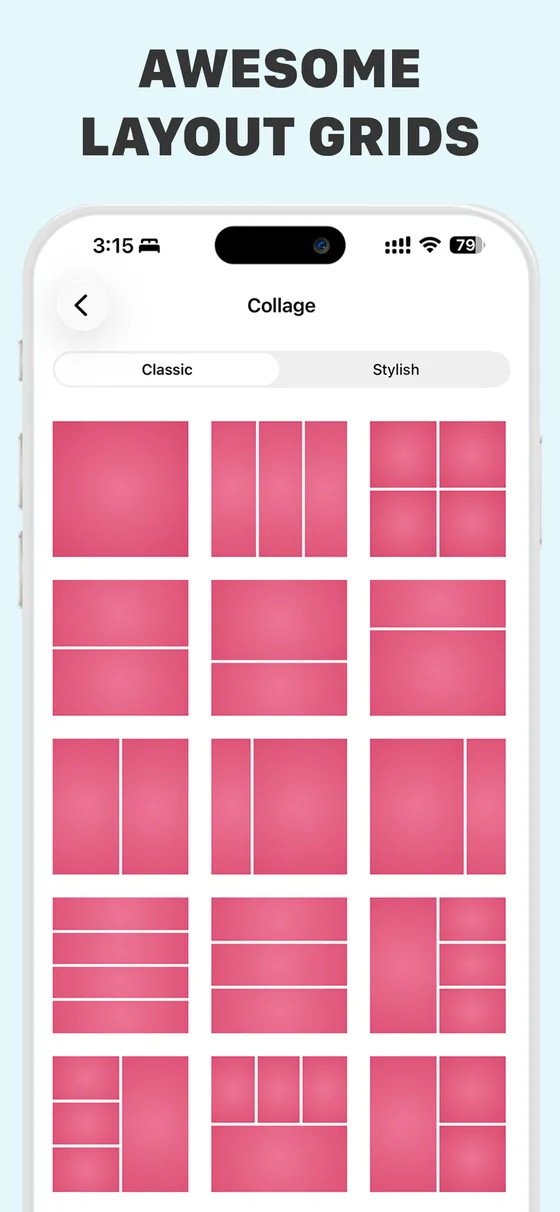
Tap Collage and pick a layout. The Classic tab has photo grids for 2, 3, 4, 6, 8, 9 and more pictures; Stylish has freestyle shapes. Prefer a ready-made design? Open the Template Store and pick one for a birthday, travel, daily life and more.
- 3
Add your photos
Tap each cell to choose a photo from your library, or pick several at once. Drag a photo to swap it with another cell, pinch to zoom and drag to reposition it inside its cell.

- 4
Adjust the grid
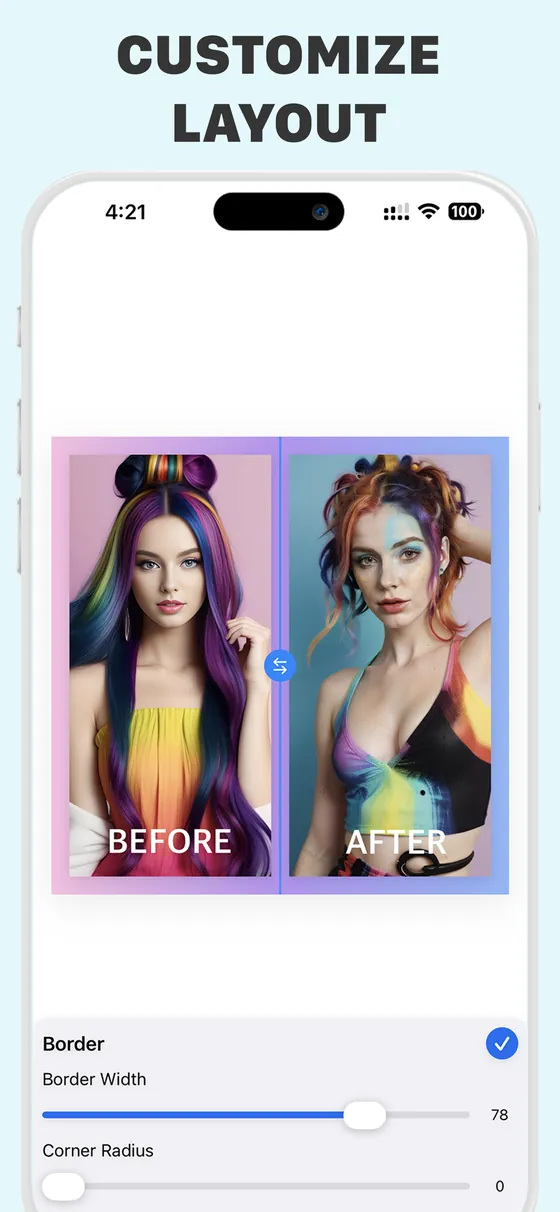
Drag the borders between photos to resize cells. Change the border width and the corner radius for thin modern lines or soft rounded frames.
- 5
Make your own layout (optional)
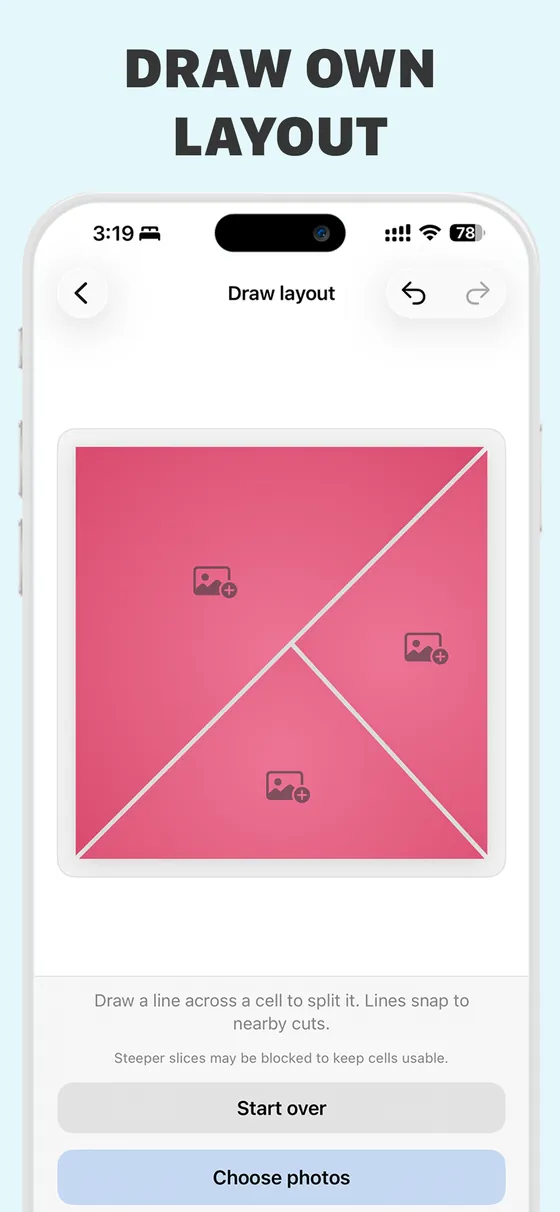
Want a shape no template has? Use Draw layout: draw a line across a cell to split it, and repeat until the layout is exactly how you want it.
- 6
Add text, stickers and a background
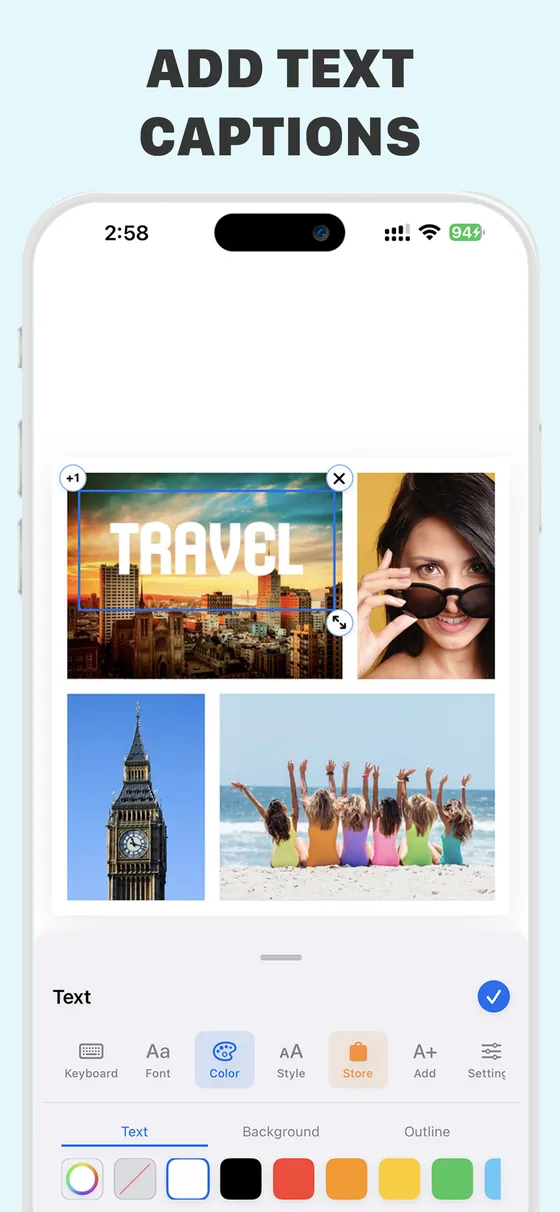
Add a caption in one of 80+ fonts, place stickers, and choose a colour, gradient or texture background. Use AI Cutout to lift a person out of a photo and place them anywhere on your collage.
- 7
Save in HD and share
Tap save to export your collage to Photos, or share it straight to Instagram, Facebook, WhatsApp or Messages.

Tips for better collages
Mix shapes
Combine one big photo with several small ones so your best shot stands out.
Keep a colour theme
Use one filter for every photo and a background colour taken from them.
Leave some space
A slightly wider border and rounded corners make busy photos easier to read.
Photo collage questions
What is the best way to make a photo collage on iPhone?
Use a collage app with ready-made grids. In Photo Collage Maker you pick a layout, tap each cell to add a photo, then save. It takes under a minute.
How do I put 4 pictures together on iPhone?
Choose a 4-photo grid in the Classic tab, add one photo per cell and save. See all 4-photo layouts.
Can I make a collage without cropping my photos?
Yes. Pinch to zoom out inside a cell, or pick a layout whose cell shapes match your photos. Drag the borders to give tall or wide photos more room.
How do I make a collage for Instagram?
Make your collage, then use Share to post it straight to Instagram as a post or story.
Can I make a photo collage on iPad?
Yes. Photo Collage Maker works on iPad, and the bigger screen makes fine adjustments easy.